
Whether you use the Calibration Wizard from Medit Link or Medit Scan for Clinics, the troubleshooting procedure is the same.
Symptoms
Calibration fails before it starts. (e.g., a message appears stating that the Calibration Tool cannot be detected.)
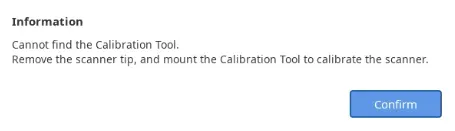
Troubleshooting
1. Check the Calibration Tool installation
Ensure there is no foreign substance between the Calibration Tool and the scanner. Then attach the tool correctly and try again.
2. Test with another Calibration Tool
If you have a spare Calibration Tool, try replacing it and test again.
3. Check the tip recognition sensor
If the scanner shows a "No Tip" status even when a tip is correctly connected, there may be an issue with the tip recognition sensor.
[i500]
Does not have a tip recognition sensor. Proceed to step 4.
[i600, i700, i700w]
Use your finger to gently test whether the tip recognition sensor works properly. (Do not press the sensor strongly.)
If the sensor functions properly, replace with another tip and check if the sensor detects it.
[i900, i900c]
The tip recognition sensor of i900 and i900c only responds to actual tips.
Replace with another tip and check whether the sensor detects it.
4. Check for camera noise and connection status
The issue may occur because the scanner is unable to operate to capture the inside of the Calibration Tool due to a connection problem. Please check whether the connection works properly in a general scanning stage.
Check if there is black noise on the camera during scanning or any symptoms of camera connection failure. If you find a poor camera connection, resolve the connection issue first and then try Calibration again.
Intraoral Scanner Connection Issue (i500, i600, i700, i700 wireless, i900, i900c)
5. Check the PC
If you have access to another PC, try running the Calibration on that PC.
If you cannot use another PC, reinstall Medit Link and proceed to step 4.
6. If the problem persists, professional assistance is required.
Please submit an request including the results of the above checklist. It will help resolve the issue.
Symptoms
The Calibration does not proceed at a certain dial stage.
The progress bar does not move or repeatedly goes up and down at a specific dial stage and does not proceed to the next step. This mainly occurs at steps 6, 7, 8, and LAST.
Troubleshooting
1. Check the Calibration Tool installation
Ensure there is no foreign substance between the Calibration Tool and the scanner. Then, properly attach the tool and try again.
2. Test the Calibration Tool
If you have a spare Calibration Tool, check whether the same issue occurs with the other one.
If the issue only occurs with a specific tool, you can check the internal panel via Live View by starting a scan with that problematic Calibration Tool mounted.
When submitting a support request, it will be helpful to include a scan image of the tool’s interior, as shown below:
| Normal | Out of focus | Panel misaligned |
To check focus more effectively, examine the dial corresponding to the step where the Calibration does not proceed.
It is normal for the focus to become slightly blurred toward the LAST dial, but if it is excessively blurred, the issue may be with the camera focus.
3. Check the PC
If you have access to another PC, try running the Calibration on that PC.
If another PC is not available, reinstall Medit Link and proceed to step 4.
4. If the issue persists, professional support is required.
Please submit a request including the above findings to assist in resolving the issue.
Symptoms
After completing Calibration, a failure message appears in the Calibration Wizard. Alternatively, repeated Calibration requests appear when launching Medit Scan for Clinics.
Troubleshooting
1. Check the Calibration Tool installation
Ensure there is no foreign substance between the Calibration Tool and the scanner. Then, properly attach the tool and try again.
2. Test the Calibration Tool
If you have a spare Calibration Tool, check whether the same issue occurs with it.
If the issue only occurs with a specific tool, start a scan with the problematic Calibration Tool mounted to view the internal panel via Live View.
When submitting a support request, including a scan image of the tool's interior as shown below can be helpful:
| Normal | Out of focus | Panel misalignment |
To better assess the focus, check the dial stage where the Calibration process gets stuck.
It is normal for the focus to become slightly blurry near the LAST dial, but if it becomes excessively blurry, the camera focus may be faulty.
3. PC Check
If another PC is available, try running the Calibration on that PC.
If the issue only occurs on a specific PC, check the following two items:
3-1) Corrupted ioscn file
In rare cases, if the ioscn file is corrupted, Calibration may not complete properly and file initialization is required.
ioscn file path: C:\ProgramData\Medit\Medit Device\Calibration\Handheld Scanner
In this folder, back up and delete the .ioscn file that matches your scanner's serial number.
After deleting the .ioscn file, try Calibration again.
3-2) Add Medit-related folders as exceptions in Windows Security
Windows Security may mistakenly interfere with or damage the ioscn file.
4. If the issue persists, professional assistance is required.
Please submit a support request including the results of the above checklist to help resolve the issue.
Comments
0 comments
Please sign in to leave a comment.