
When you run Medit Scan for Clinics, you can check your scanner status and, if you use a wireless scanner, wireless hub status at the bottom left corner of the screen.
Scanner Connection and Registration
When the scanner is connected while internet access is available, the scanner registration will proceed automatically.
1. Prepare a laptop or desktop with an internet connection.
2. Connect the Scanner refer to linked articles.
i900 setting i900 classic settings i900 Mobility settings
i700 setting i700 wireless setting
3. Run the Medit Link App. If it is not installed yet, please refer to the video below.
4. Refer to the video below and press the Scan button to launch Medit Scan for Clinics.
5. Then ,the scanner connection and registration starts automatically.
(For wireless scanners, use the Pairing Manager to connect.)
You can check the scanner connection using the scanner status detailed below.
6. Scanner registration can be checked in the My Scanner menu.
Scanner Status
The following are indications of the scanner status:
Model/Status |
Not Connected |
No Tip |
Connecting |
Rebooting |
Calibration Required |
Ready |
Scanning |
Sleep |
Overheating |
|---|---|---|---|---|---|---|---|---|---|
i500 |
N/A |
||||||||
i600 |
N/A |
||||||||
i700 |
N/A |
||||||||
i700 wireless |
|||||||||
i900 |
|||||||||
i900 classic |
|||||||||
i900 Mobility |
Model/Status |
Not Connected |
No Tip |
Connecting |
Rebooting |
Calibration Required |
Ready |
Scanning |
Sleep |
Overheating |
|---|---|---|---|---|---|---|---|---|---|
iE* |
*iE scanner does not support the small tip.
LED Indicators
When power is supplied normally, a blue LED indicator lights up on the top of the handpiece.
| i500 | i600 | i700 | i700 wireless |
[i900, i900 classic]
LED indicators on the bottom offer vivid and quick visibility of your scanner’s status - further simplifying your overall experience.
| Ready to Scan | Scanning | UV-C Disinfection | Caution |
[i900 Mobility]
| Color | Meaning | |
| Handpiece LED | White | Booting and Power-On Signal |
| Green | Ready for Scan | |
| Blue | Scanning | |
| Purple | UV-C LED in Process | |
| Yellow | Caution | |
| Red | Alert | |
| Battery LED | Blue | Battery Level |
| Red | Alert | |
| Wireless Hub LED | White | Booting and Device Searching |
| Blue | Paired |
Hub Status
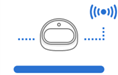
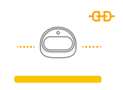
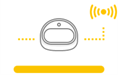
When you use a wireless scanner, the status of the wireless hub is displayed as shown below:
| Status Description | i700 wireless | i900 Mobility |
|
Hub Connected The hub is connected to a scanner. |
 |
|
|
Connecting The hub is connecting to the PC. |
 |
|
|
Disconnected The hub is disconnected from a scanner. |
 |
Pairing Manager (i700 wireless and i900 Mobility)
Pairing i900 Mobility
ℹ️ Note
To ensure smooth pairing process, check that the “Mobile Scanner Connection“ option in the scanner settings is enabled.
1. Connect the hub to your computer; once connected, the “Pairing Manager” icon will appear in the bottom-left corner of the screen as shown in the image below.
2. Open “Pairing Manager” and enable the “Search for Mobile Scanners” toggle. Next, turn on your scanner — it will appear under the nearby scanners section.
The program will automatically detect all nearby i900 Mobility devices. Identify the scanner you want to connect to by its serial number, then click it to pair.
3. Once the scanner is paired, it will be remembered and automatically reconnect the next time it is turned on.
4. When using multiple scanners, you can manage each one using the menu button next to its name. Click the button to rename the scanner (e.g., from its serial number to a custom name), disconnect it, or forget the device.
Pairing i700 wireless
1. Connect the hub to your computer; once connected, the “Pairing Manager” icon will appear in the bottom-left corner of the screen as shown in the image below. If a previously paired scanner is nearby, it will connect automatically, allowing you to begin scanning immediately.
2. Open the "Pairing Manager" to control connection with already paired scanner or to pair a new scanner.
| Find Connected Scanner | Make the paired scanner vibrate to help you find it. |
| Disconnect & Turn Off | Disconnect the currently paired scanner and turn it off. |
| Pair New Scanner | Pair the wireless hub with a new scanner. |
3. To manually connect a new scanner, choose "Pair New Scanner" option and follow the detailed instructions on the screen.
⚠️ Caution
To avoid pairing issues, do not interrupt communication between the scanner and the hub—keep the battery in, the hub connected, and don’t cover the end of the handpiece with your hand.
4. Once the scanner is paired, you can check the scanner connection status in the bottom left corner.
Switch & Scan (i700 wireless only)
The Switch & Scan function allows you to register a single scanner to multiple wireless hubs and switch connections between the hubs using only the control button, without going through the pairing manager.
First, you need to register the device information of your scanner and wireless hub by manual pairing. Unregistered scanners and wireless hubs cannot connect with each other, no matter how strong the connection signal is.
1. Make sure your firmware is up to date before using the Switch & Scan feature.
2. If you connect with a new hub that has never connected to your scanner, manual pairing is required to register the scanner to the new hub.
3. Make sure both your scanner and the hub to connect with are turned on. You can connect the scanner and the wireless hub without running the Medit Scan for Clinics.
If you prefer a guided setup, you can also use the Pairing Manager, which is available within Medit Scan for Clinics:
Open Pairing Manager → Pair New Scanner → Multiple Hubs
4. Press the center of the Control button for more than two seconds.
5. The scanner will vibrate briefly three times. That means you are ready to use Switch & Scan.
6. The scanner generates a short vibration when successfully connected to a wireless hub.
7. Run the program and start scanning.
⚠️ Caution
- If you have multiple wireless hubs in an unclosed workspace, the scanner may be connected to a hub other than the one you want to connect to.
- If you try to connect between two wireless hubs, the scanner may be connected to a hub other than the one you want to connect to.
- If the scanner fails to connect, get closer to the wireless hub you want to connect to and try again to connect by pressing the center of the Control button for more than two seconds.
Comments
0 comments
Please sign in to leave a comment.