Symptoms
Connection to the wireless hub fails (USB A to C with the power adapter).
Solutions
1. Make sure Windows is up to date.
2. Install the latest chipset (motherboard) drivers.
3. Uninstall the Medit Link application and reinstall it.
4. Change the USB 3.0 port on your computer.
5. Make sure the wireless hub is turned on (The blue light gets illuminated).
6. Check with a different accessory (USB 3.0 cable).
7. Check the Device Manager to see if the Medit Devices and Medit Controller are listed.
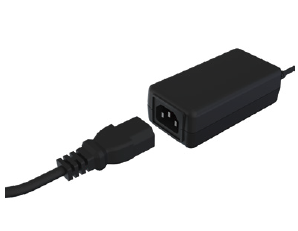
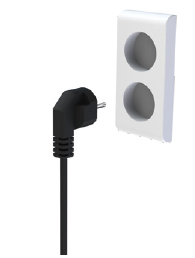
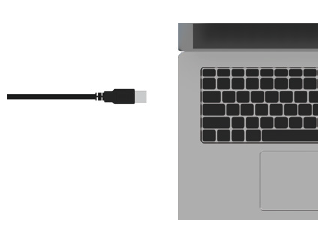
8. Double-check that the USB 3.0 and power adapter are properly connected to the wireless hub, as shown in the image below.
① Connect the USB cable (A to C) to the wireless hub.
② Connect the Medical Adapter cable to the wireless hub.
③ Connect the Power Cord to the Medical Adapter.
④ Connect the Power Cord to a power source.
⑤ Connect the USB cable (A to C) to the PC.
Comments
0 comments
Please sign in to leave a comment.