
Overview
Medit Splints provides an efficient and streamlined workflow for the design and creation of splints. Users can accelerate the process with Auto Creation, which uses previously defined parameters to generate splints quickly. Following automatic generation, a comprehensive suite of editing tools is available for precise adjustments and refinements, ensuring clinical and anatomical accuracy.
For scenarios requiring full user control, Manual Creation mode offers a guided, stepwise process for splint design, enabling meticulous customization at each stage.
Product Name |
CAD/CAM Software |
Trade Name |
Medit Splints |
Model Name |
MA-ASP |
UDI DI |
(01)08800026700173 |
UDI PI |
(10)1.1.6 |
Basic UDI-DI |
88000267MA-ASPA8 |
Device Clinical Benefits
Facilitation of patient-specific occlusal splint therapy through the provision of a patient-specific occlusal splint with clinically acceptable fit and adaptation.
Performance
-
Accuracy of Generated Splint Fit
Performance testing confirmed that the internal fit deviation between the generated splint and the reference dental arch model is within ± 50 μm.
Intended Use
Medit Splints is a software that creates dental splints that protect teeth, temporomandibular joints, and muscles, and stabilize occlusion. It enables users to perform tasks such as aligning scan data, adjusting occlusal relationships between jaw data, creating inner surfaces, defining splint outlines, designing outer surfaces, editing scan data, and adding labels to splints.
The program should be used according to the diagnosis and treatment plan set by the dental professional, and its use in specific treatment cases should be confirmed through consultation with a dental professional. The program must not be used for purposes other than those described in its intended use.
Indications for Use
The software is indicated for use by dental professionals to design dental appliances. The resulting dental appliances may be used, at the discretion of the dental professional, for patients requiring management of conditions such as bruxism or temporomandibular joint disorders. The software itself does not diagnose, treat, or directly manage any medical condition.
Contraindications
The software cannot be used for purposes other than to create dental splints.
Intended User Profile
The software is designed for use by dental professionals who have a basic understanding of dental procedures and terminology to operate it effectively and interpret its outputs. This includes but is not limited to dentists, dental hygienists, and dental technicians.
Intended Patient Population
The software can be used to design dental appliances for orthodontic patients, individuals with sleep apnea, athletes, and patients with temporomandibular joint disorder or bruxism.
Patient Safety Advisory
Poorly designed or tight splints can harm a patient’s dental health by causing tooth damage, cavities, and root issues. They may also result in discomfort and difficulties when speaking and eating, especially in the early stages of wearing them.
Consequently, though the software can facilitate diagnostic and treatment planning processes, all decisions must be made by a skilled dental professional with a comprehensive understanding of the software’s functionality and data interpretation. There are ample opportunities at each stage of the splint design process to identify and rectify any inaccuracies or errors that may lead to severe injuries. The dental professional must closely monitor the processes of designing and decision-making.
The final prosthesis is always reviewed and adjusted by a qualified clinician before being applied to the patient, thus lowering the actual clinical risk.
Security Risk Management and Error Handling
After the issue has been improved, if it is necessary to update the program, such as releasing a new installation file or applying some patch files, it is officially distributed through the head office sales/SE personnel, along with the application guide, to the person in charge of the corporation or the issue site.
Responses to security issues may be further announced on the website if necessary.
During the issue handling and recovery process, temporary operational restrictions may occur to ensure system stability and data integrity:
Patient data may be temporarily inaccessible until the recovery process is completed.
Clinical workflows may be interrupted; normal operations will resume once administrative actions have been completed. Patient data will not be automatically deleted during this process.
A warning message will be displayed, and additional data entry will be restricted until the issue is resolved.
User sessions may be automatically logged out to prevent unauthorized access.
Security Response Procedure
1. Reporting security issues
2. Share initial analysis results and progress
3. Issue delivery
4. Issue response plan / delivery
5. Issue response plan / share results
System Requirements
Windows
CPU |
Intel Core i5 2.6 GHz or higher |
RAM |
16 GB or higher |
Graphics Card |
NVIDIA GeForce GT 1060(2 GB) or higher |
OS |
Windows 10 64-bit, Windows 11 64-bit |
macOS
CPU |
8-core or higher |
RAM |
16 GB or higher |
Chip |
M1/M2 or higher |
OS |
Sonoma 14 or later |
Network Requirements
1. Network Type: wired LAN or Wi-Fi (WPA2 or higher)
2. Bandwidth: minimum 100 Mbps (1Gbps recommended)
3. Protocol: IPv4
4. Port: TCP 443
5. Latency: average below 50ms
Security Requirements
1. Authentication: Password must be 8-16 characters long, including a combination of at least three of the following: letters, numbers, and special characters. Passwords are accepted in English only.
2. Encryption: TLS 1.2 or higher, HTTPS transmission
3. Antivirus & Patches: keep the operating system and antivirus up to date
This software continuously monitors for security events such as unauthorized access, tampering attempts, and data integrity errors.
Unauthorized Access Prevention:
Only individuals who have been granted Admin account privileges in Medit Link can access patient information and internal servers. During the registration process, each user is assigned account permissions to manage and prevent unauthorized access.
Cybersecurity Information
Medit Splints does not access any patient PII/PHI from Medit Link. In this system, the communication and API exchanges use scan data files identified only by the patient’s Case ID rather than any PII/PHI.
Preparations and Handling Before/During Device Use
Product installation procedure: managed via the Cloud
-
Mandatory user validation when creating Medit Link Account:
Create a user account in Medit Link
Send a user validation email
User confirms the validation
User logs in
Troubleshooting guide: https://support.medit.com/hc/en-us
Required Facilities, Training, and User Qualifications
Local network administrators/operators must have IT expertise (network, server, OS security configuration).
Cloud services are managed on AWS by Medit administrators (AWS certified).
Information to Verify Proper Installation and Safe Operation
-
Medit Splints Updates
Update through the App Box in Medit Link. (The latest Medit Splints installer file will be downloaded and installed.)
Run Medit Splints to check the installed version.
If security-related updates are required, install the updated Medit Splints version in the same way.
Cloud Services: Managed and monitored through AWS Trusted Advisor with regular updates to apply required security measures.
-
Data and Settings Backup/Restore
Data is managed locally via Medit Link and backed up to the Cloud.
Backups/restores can be performed by downloading data as needed.
Original IOSC files are retained for up to 6 months only.
User logs are retained for 3 months and can be manually deleted.
Stored data can be deleted from the Case Box in Medit Link, and the responsibility for such deletion rests with the user who performs it.
Cases can be transferred using the Case Converting Tool in the Settings menu of Medit Link.
When a user account is deleted, all user data (e.g., personal information, usage logs such as log-in and feature usage) and database data are permanently removed and cannot be restored.
-
Integrity and Verification of Software Security Patches
The executable file of Medit Splints is automatically digitally signed during installation and verification, so users do not need to take any additional action.
IT Network Precautions
Guidelines
Execution of the health software on an IT-network could result in previously unidentified risks to patients, users, or third parties. The responsible organization is advised to identify, analyze, evaluate, and control these risks.
Hazard Situations
Always ensure that your system is protected by the latest version of antivirus software and an active firewall.
Connecting the network to any device other than Medit Splints may result in potential virus infections or data tampering. Verify that the network is operating under appropriate administrative control before proceeding.
Even if automatic backup is configured, no backup will be performed if the software is not running or if the designated backup location is unavailable.
Subsequent changes to the IT network could introduce new risks and may require additional analysis. Such changes include:
1. Modifications to the IT network configuration.
2. Adding items (hardware, software platforms, or software applications) to the IT network.
3. Removing items from the IT network.
4. Updating software applications on the IT network.
5. Upgrading software platforms or software applications on the IT network
In the event of a cybersecurity incident, if the cybersecurity detection software identifies a threat, the user must report it to the manufacturer and to the competent authority of the Member State.
Installation Guide
1. Log in to your Medit Link account and go to the App Box on the left-hand menu.
2. In the Medit Apps tab, find the Medit Splints app and click "Install."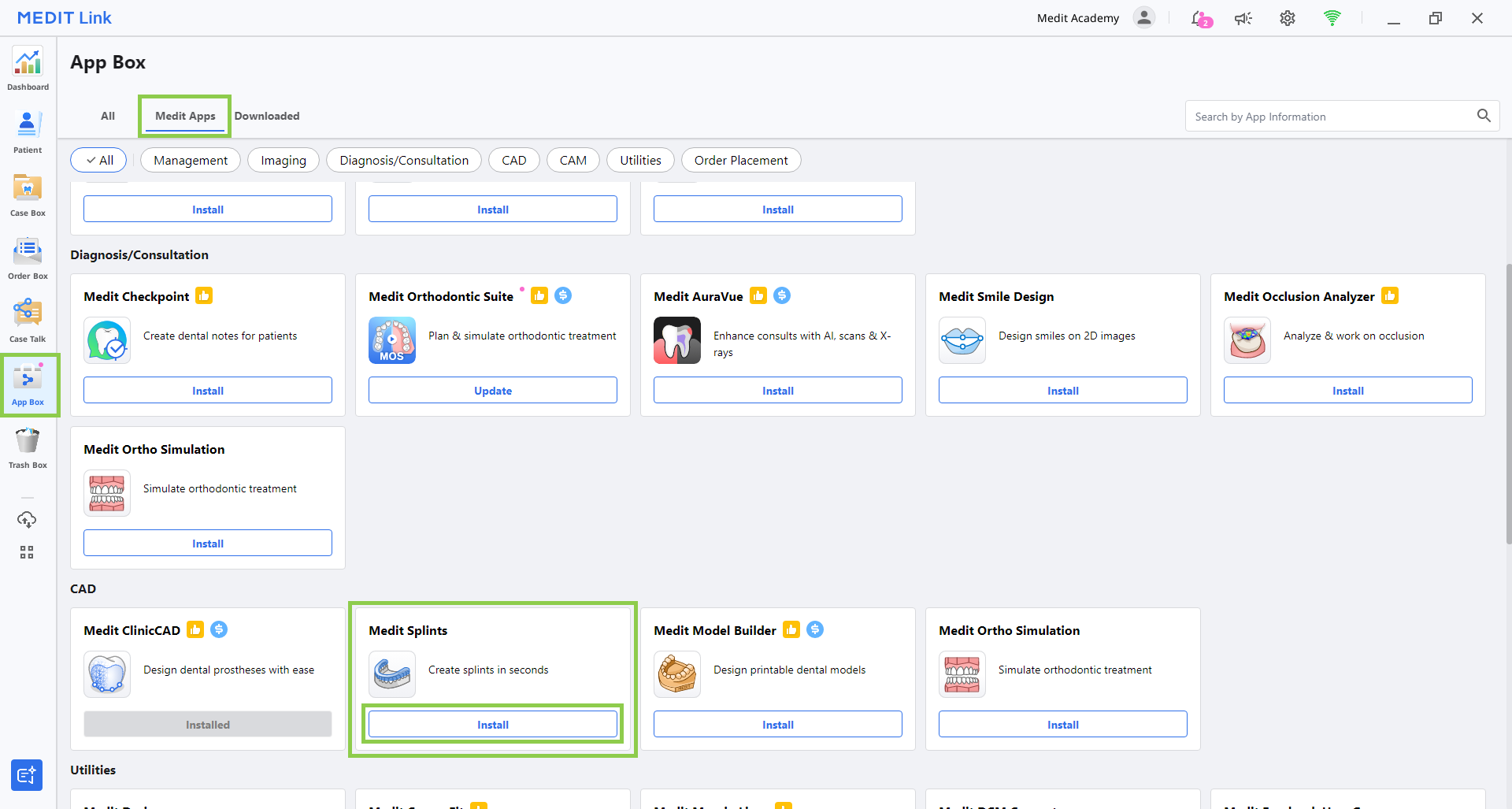
3. Read the Software License Agreement and confirm app installation by clicking "Accept and Install."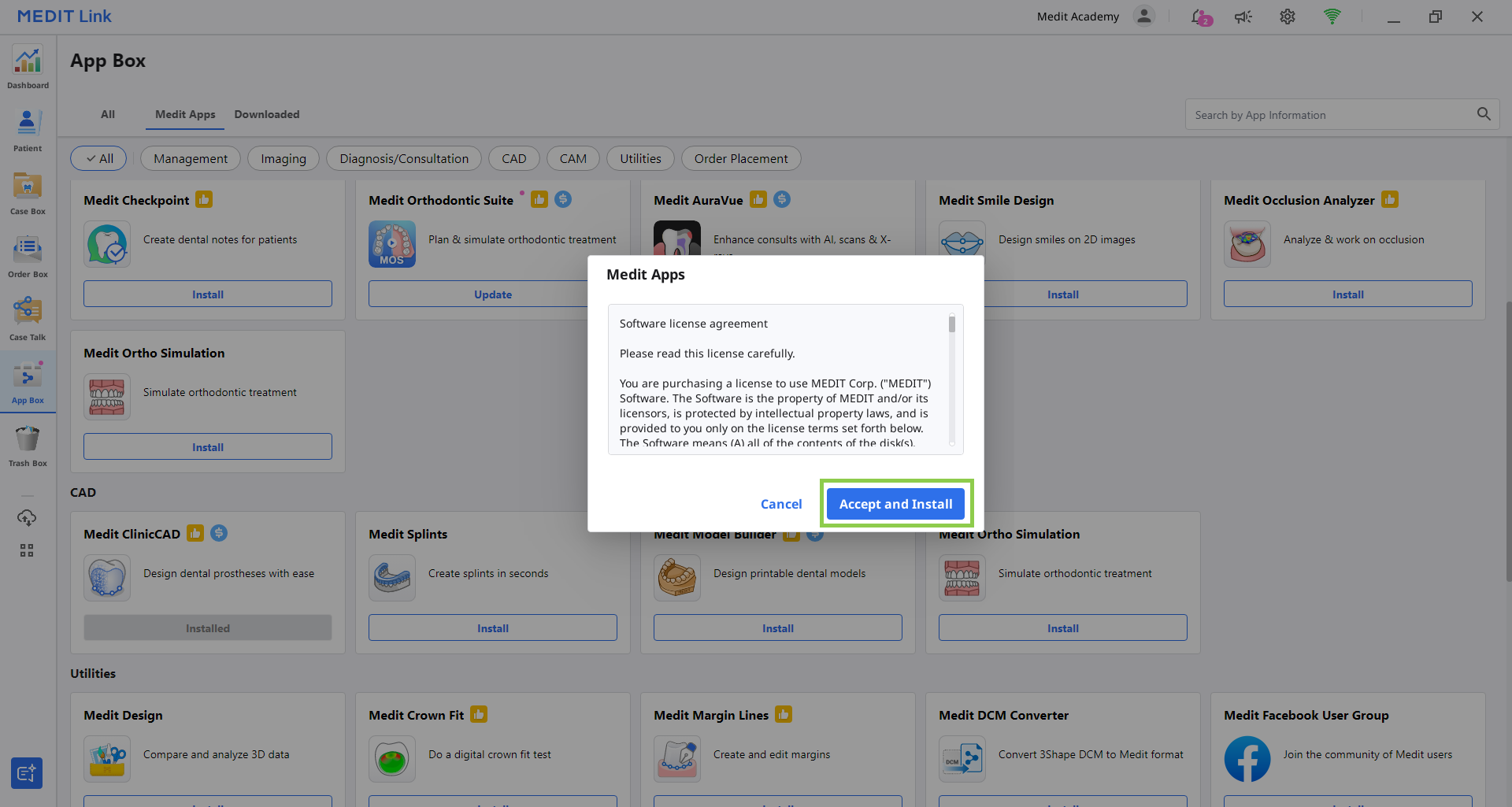
4. The app will be downloaded and installed automatically. It may take several minutes to finish the installation process.
⚠︎ Caution
Do not turn off the PC or close Medit Link during the installation process.
5. Once the app is installed, you can run it from any case in Medit Link by clicking the app icon in the top right corner of the Case Detail window.
6. To uninstall the program, open App Box and locate the Medit Splints app. Select the app card to open its details page, then click “Uninstall.”
Comments
0 comments
Please sign in to leave a comment.