
The following tools are provided at the bottom of each scan stage.
Basic Scanning Tools
 |
Start |
Start the scan. The user can also start the scan by pressing the Scan button on the scanner. |
 |
Stop |
Stop the scan. The user can also stop the scan by pressing the Scan button on the scanner. |
 |
Optimize |
Align 3D images for a more accurate scan. All the noise will be removed after optimization. "Optimize" is automatically applied after the scan is completed, so in most cases, it does not need to be run manually. Use "Optimize" in the following situations to align the data, remove noise, and then continue scanning.
|
 |
High Resolution Scan |
Acquire high-resolution scan data for entire or partial scan data. The high-resolution and standard-resolution scan data are smoothly merged in post-processing. * unavailable with i600 |
 |
Import Scan Data | Import 3D data from Medit Link. |
 |
Delete | Delete scan data for the current stage. All data that are related to the current stage can be deleted. |
 |
Undo | Cancel the previous scan. |
 |
Redo | Restore the canceled scan. |
High Resolution Scan
* unavailable with i600
Please refer to the following comparison between the high-resolution and standard-resolution scan data.
|
Matte |
Monochrome |
To easily distinguish the areas scanned with [High-Resolution Scan], it is recommended to set the model display mode to "Monochrome".
In general, a higher resolution does not necessarily result in higher accuracy. Resolution refers to how finely details are captured, while accuracy refers to how closely the data matches the actual object.
HD mode is advantageous for scan data alignment as it captures finer details, such as sharp edges, in scan targets (scan bodies) with fewer geometric features or in narrow areas. Therefore, it is useful when scanning prep teeth or scan bodies that require detailed data.
However, when using HD mode, the post-processing time of scan data is longer compared to the standard mode. It is recommended to apply [High-Resolution Scan] only to areas that require detailed data and scan the remaining areas using standard resolution. By using it partially in this way, post-processing time can be reduced and the overall file size can be minimized compared to scanning the entire case with [High-Resolution Scan].
ℹ️ Note
You can set options for high-resolution data processing on Settings > Post-Processing > High-Resolution Data Processing.
- You can select whether to apply high-resolution data processing to only HD scan data or both SD and HD scan data.
- You can set to apply high-resolution data processing to prepared teeth data.
Import Scan Data
This feature allows the users to import scan data acquired by third-party scanners. You can edit the data or perform additional scanning with the imported data.
4 supported file formats for import: Meditmesh, OBJ, PLY, STL
ℹ️ Note
- You can import a previously scanned file from a case in Medit Link
- When importing a third-party scan file, make sure to attach it to a case in Medit Link before proceeding.
- You can import a file before starting the scanning process or moving on to the next stage.
1. Click the "Import Scan Data" icon.
2. Choose a file from a Medit Link case.
3. Trim the part needing a rescan.
4. Perform addition scanning.
Filtering Tools
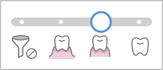 |
Smart Scan Filtering |
Filter unnecessary soft tissue data while scanning. Three filters are available for Smart Scan Filtering.
|
 |
Smart Color Filtering | Filter specific colors from being scanned. You can add and manage the color to filter. |
 |
Smart Stitching | Acquire and align scan data freely, regardless of your scan strategy. Data is automatically aligned while scanning and can be manually aligned after scanning stops. |
Smart Scan Filtering
This feature removes unnecessary soft tissue data while scanning, depending on the selected filter. Three filters are available for your convenience.
 |
No Filtering |
Soft tissue remains intact. This option is useful plaster model cases. |
 |
Teeth + Gingiva |
Remove soft tissues that interfere with the scan, leaving only the necessary teeth and gingiva. You can use this option for most of the general scan cases. |
 |
Intense Teeth + Gingiva | Remove soft tissues that interfere with the scan, leaving only the necessary teeth and gingiva. This option only acquires gingiva data within a certain distance from the tooth and excludes other soft tissues away from the teeth. It is also effective for edentulous scanning. |
 |
Teeth |
Remove all soft tissues and gingiva, leaving teeth only. This option is effective when scanning only the teeth as an additional scan after using the "Teeth + Gingiva" filter for initial scanning. |
Smart Color Filtering
The "Smart Color Filtering" option prevents the scanning of alien materials (e.g., gloves, etc.) in the intraoral environment by registering their colors. Once the colors are registered, and the option is turned on, the colors will automatically be filtered out during the scanning process.
1. Turn on filtering by clicking the "Smart Color Filtering" option at the bottom.

2.To register a new color, click the "Add a Color" icon.

3. The Smart Color Filter dialog appears.
4. Prepare the material to be filtered out. Then, press the Scan button on the scanner to start the color recognition process.
5. Click "Confirm" to register the color and complete the color registration.
6. You can turn on or off each color filter by clicking the color icons.
7. The registered colors will be shown on the icon and saved for all scan stages unless you change them.

⚠️ Caution
The system may filter out the scan data you require if the shade of colors you registered is close to black, white, or the hues of teeth and gingiva.
The registered colors will be displayed on the "Smart Color Filtering" icon.
Smart Stitching
ℹ️ Note
- Smart Stitching is only supported for the Pre-Op for Maxilla, Pre-Op for Mandible, Maxilla, and Mandible stages.
- Smart Stitching is unavailable for the Abutment Library Matching, Impression Scan, and Relined Denture Scan tools.
- You cannot use Smart Stitching after using the Abutment Library Matching and Scan Body Library Matching features or after occlusion alignment.
Smart Stitching is not supported when Scan Assist is enabled.
For 3D scanning using the video recording method, it is important to scan continuously so that the camera does not lose focus during the process of acquiring scan data.
This process is highly dependent on the user's skill and the condition of the patient's mouth, but the scanning method supported by Smart Stitching can eliminate this inconvenience.
1. Turn on the "Smart Stitching" icon at the bottom.
2. Start scanning in the stage that supports Smart Stitching, Pre-Op.
3. If the scanner is moved to scan another non-contiguous area, a new separate part of the scan data will be created. At this time, the previously scanned parts of the data are displayed as thumbnails in the lower left corner of the screen.
4. During scanning, if the scanner gets new data in an unaligned scan data area, it will automatically attempt to align, and any thumbnails of aligned data will disappear.
5. Once you pause to review all the separately captured parts of the data, they are assembled for you on the main screen. Note that all the captured parts of the data must be aligned into a single scan before moving to another scan stage.
6. To align all scan data, conduct one of the following:
-
Scan additional data to get more data for automatic alignment.
- Use the Manual Alignment tool to align data.
7. Data acquisition is completed when all unaligned scan data is aligned, as shown below.
8. If unaligned data is detected before moving to another scan stage, the user is prompted to delete the unaligned data until only one set of scan data remains.
Advanced Tools
 |
Impression Scan |
Provide seamless scanning to combine intraoral and impression scan data. * Refer to Case and Workflow Examples > Impression Scan for a detailed description of how to use the tool. |
 |
Abutment Library Matching |
Manage custom abutment libraries. * Refer to Case and Workflow Examples > Abutment Library Matching for a detailed description of how to use the tool. |
 |
Scan Body Library Matching |
Manage pre-set and custom scan body libraries. * Refer to Case and Workflow Examples > Scan Body Library Matching for a detailed description of how to use the tool. |
 |
Mandibular Movement |
Record and replay the patient's mandibular movement. * Refer to Scan Stages > Occlusion > Additional Tools for Occlusion Stage > Mandibular Movement for a detailed description of how to use the tool. |
 |
Preparation Review |
Check whether the tooth preparation is done within the pre-set value range. * Refer to Case and Workflow Examples > Preparation Review for a detailed description of how to use the tool. |
 Slip Checker
- The Slip Checker feature prevents scan data from slipping out of alignment.
- This feature has an effect on overall scan data but helps to avoid gingival data slipping, especially in areas where there are no teeth.
As shown in the Slip Checker On/Off comparison image below, this feature will be especially useful when scanning soft tissue areas where there are no teeth.
Comments
0 comments
Please sign in to leave a comment.