When users click "Complete" at the end of the aligner workflow, they can choose one of three options: order Medit Aligners, export the aligner files for in-house production, or save the current project without taking any further action. The first two options are paid features. Pricing information is available in the Medit Help Center.
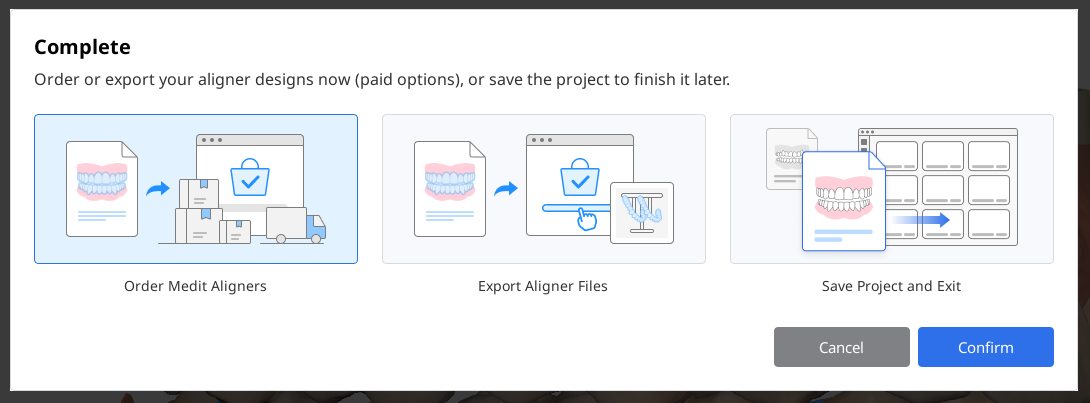
Ordering Medit Aligners
Choose this option to order fabrication of aligners based on your approved treatment plan and staging.
1. Start by selecting stages for which you want the aligners. You can enable or disable each arch using the toggle. Enter the first and last stage numbers to include in the order. If needed, enable “Skip Every” and enter the interval to fabricate aligners at regular intervals. Review the total number of aligners shown below. Note that pricing is determined by this number.
.jpg)
2. Then, configure custom options. You can choose to include or exclude pontics and attachments in the fabricated aligners.
.jpg)
3. Open the Additional Aligner Products panel and select the what product, arch, and for what stages you want to add. All added items will appear in the Added Items list, where they can be removed if needed.
.jpg)
4. Review your selections, then click “Confirm.”
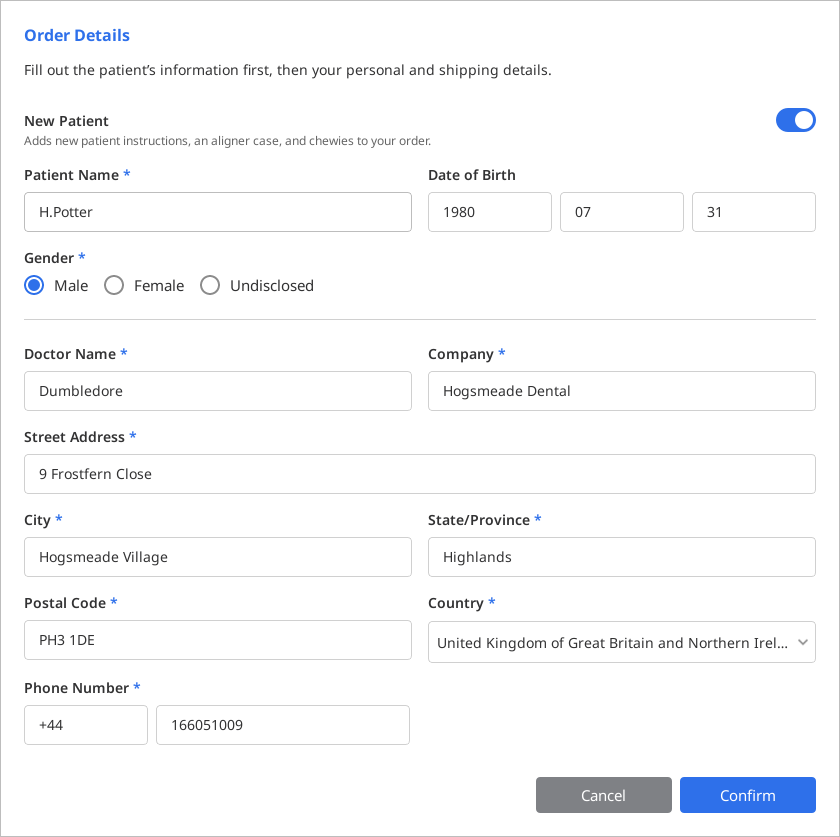
5. In the next dialog window, provide the patient and doctor information required to place the order.
If this order is for a new patient, enable the corresponding toggle to include the aligner case, chewies, and instructions with the order.
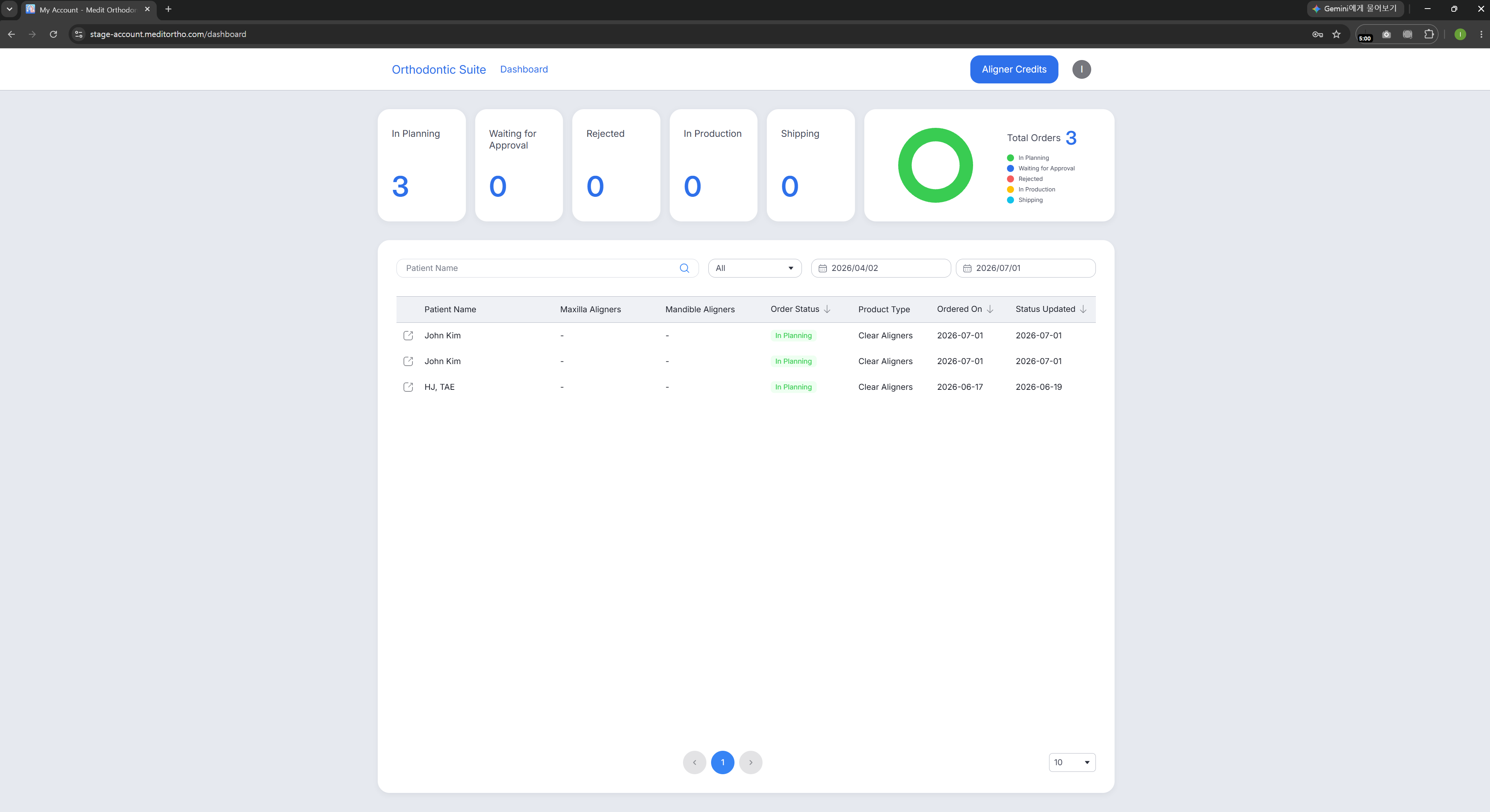
6. Once your order has been placed, you can track its status in the Order Portal. Access it from app’s Menu > Order Portal or by visiting the Medit Ortho website at https://www.meditortho.com.
Exporting for in-house production
Choose this option to export the aligner files for in-house aligner production.
1. Start by selecting stages for which you want the aligners. You can enable or disable each arch using the toggle. Enter the first and last stage numbers to include in the export. If needed, enable “Skip Every” and enter the interval to export files for aligners at regular intervals. Review the total number of aligners shown below. Note that pricing is determined by this number.
.jpg)
2. Then, adjust the available export options for the final aligner files according to your preferences.
.jpg)
3. Review your selections, then click “Confirm.”
4. Once done, the exported files will be available to you in the Medit Link case.
コメント
0件のコメント
サインインしてコメントを残してください。